

Pentrace on Your Home Screen
Add Pentrace to your phone’s home screen and it opens full screen, like an app, without the browser’s address bar. It takes three taps, and there’s nothing to download from an app store.
iPhone, in Safari
- Open any Pentrace page and tap the Share button: a square with an arrow pointing up. In newer versions of Safari it’s inside the menu: tap the menu button (three lines, just left of the address at the bottom of the screen) or ···, then Share.
- Scroll down the list and tap Add to Home Screen. If you don’t see it, tap More or View More.
- Check that the name reads Pentrace, leave Open as Web App switched on, and tap Add.
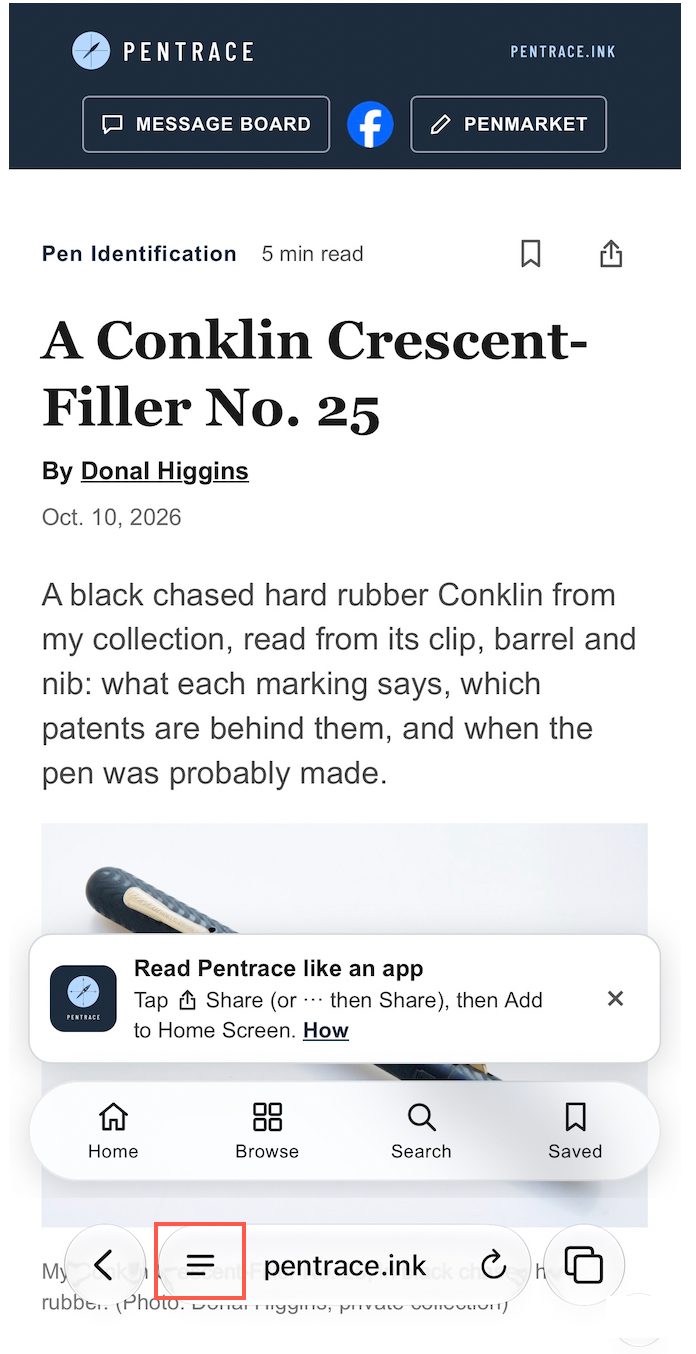
After a few articles, Pentrace shows this reminder. In newer Safari, Share is inside the menu button outlined in red.
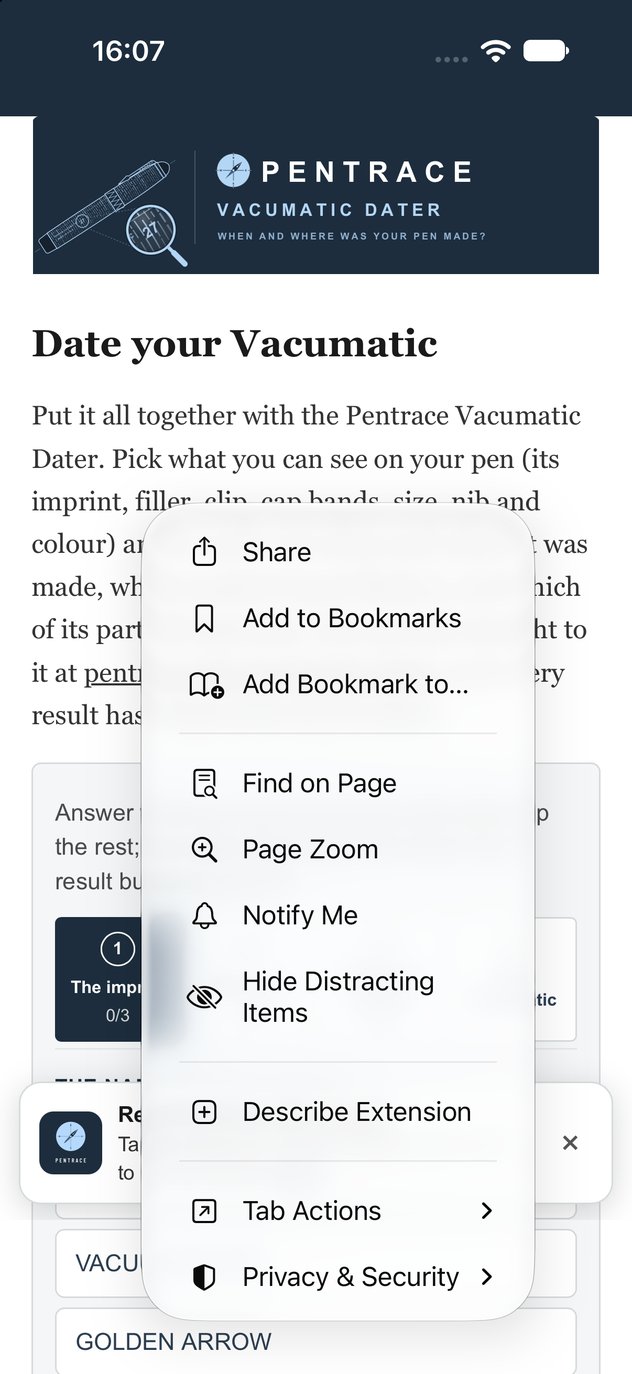
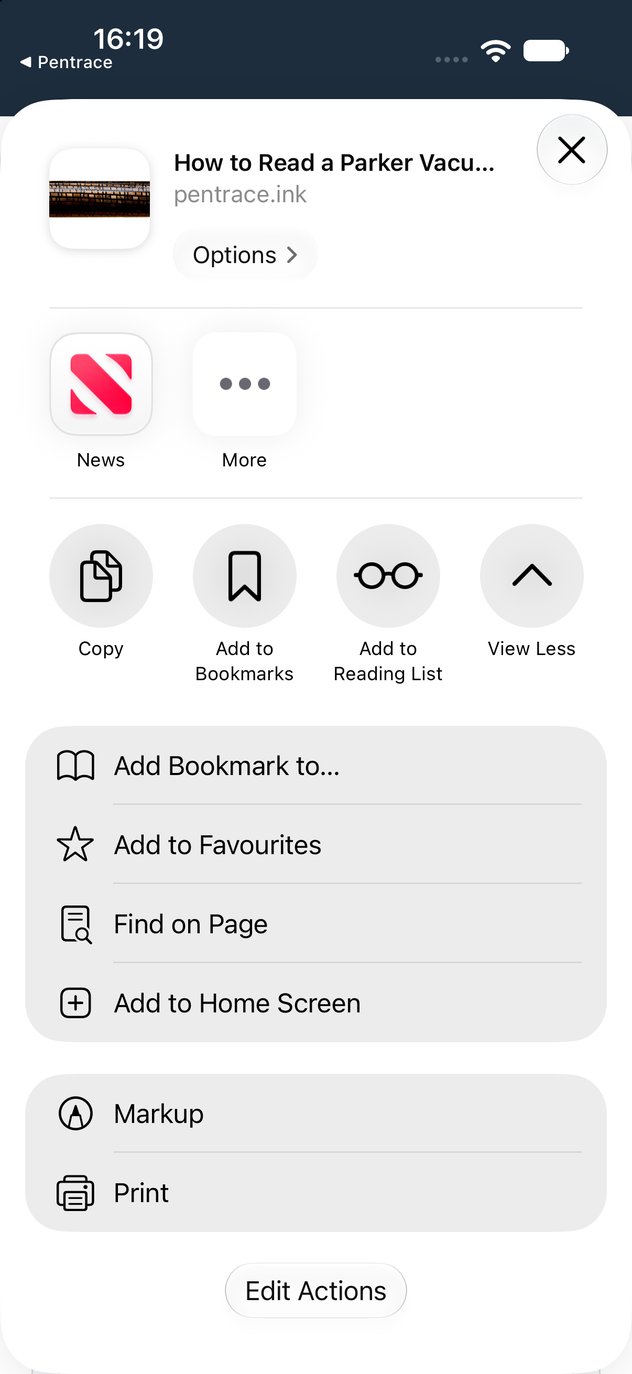
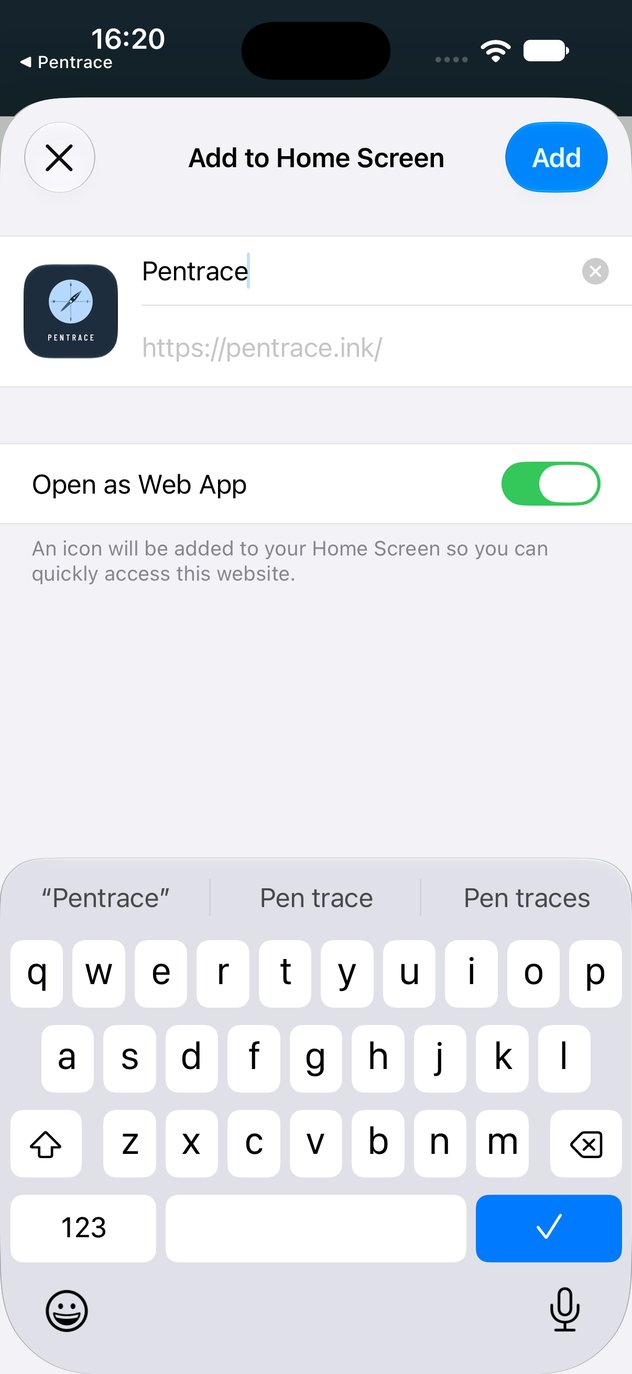
Step by step: the menu with Share, the Share sheet with Add to Home Screen (tap View More if it isn’t showing), and the panel where you tap Add. (iPhone, iOS 27)
iPhone, in Chrome
- Tap the Share button at the right of the address bar at the top of the screen.
- Scroll down and tap Add to Home Screen.
- Check the name and tap Add.
Android
In Chrome, tap the Install Pentrace button at the top of this page, if it shows. Otherwise tap the ⋮ menu at the top right and choose Add to Home screen or Install app.
Once it’s there
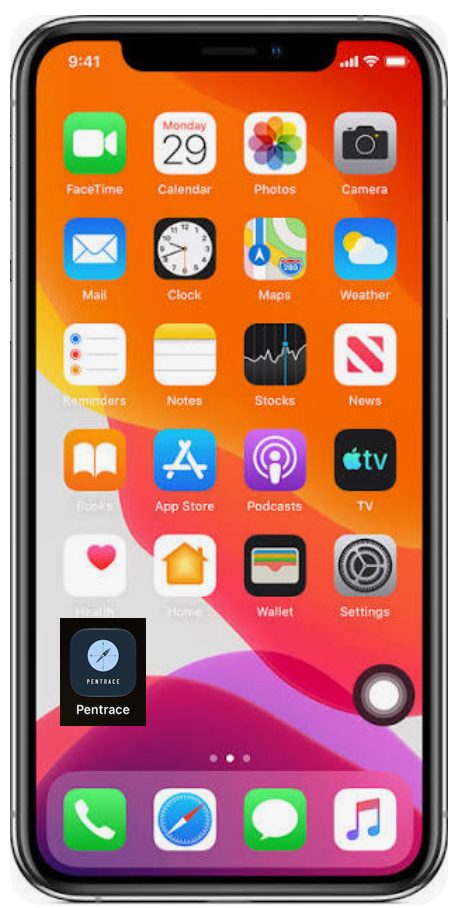

The Pentrace icon, and Pentrace opened from it: no address bar, just the article.
- Tap the Pentrace compass icon to open the site full screen. Home, Browse, Search and Saved are in the bar at the bottom; swipe in from the left edge to go back.
- Articles you save in the home-screen version are kept apart from those saved in the browser.
- To remove it, press and hold the icon and choose Remove App or Delete Bookmark. Nothing else on your phone changes.